Setting up the Hyperfocus Timer
Built for people who hyperfocus and lose track of time. Pick a session length, choose how forcefully you want to be pulled out at the end, and let Archevot do the watching.
Open the Hyperfocus Timer
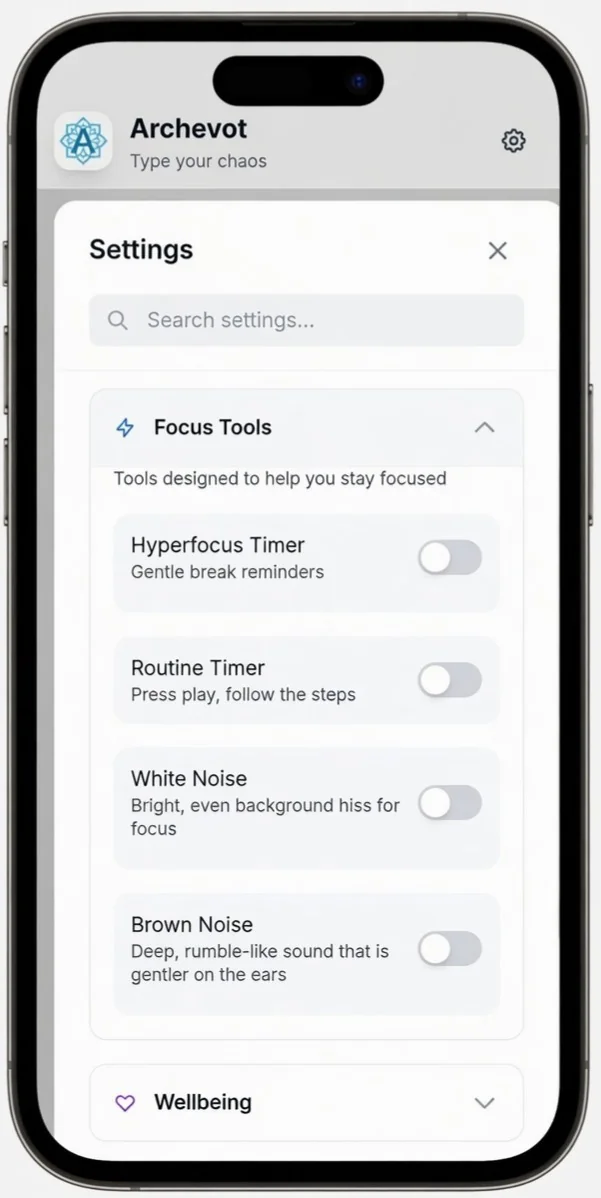
Open the Settings tab and click the Focus Tools drop-down menu to find the Hyperfocus Timer.
Configure your session
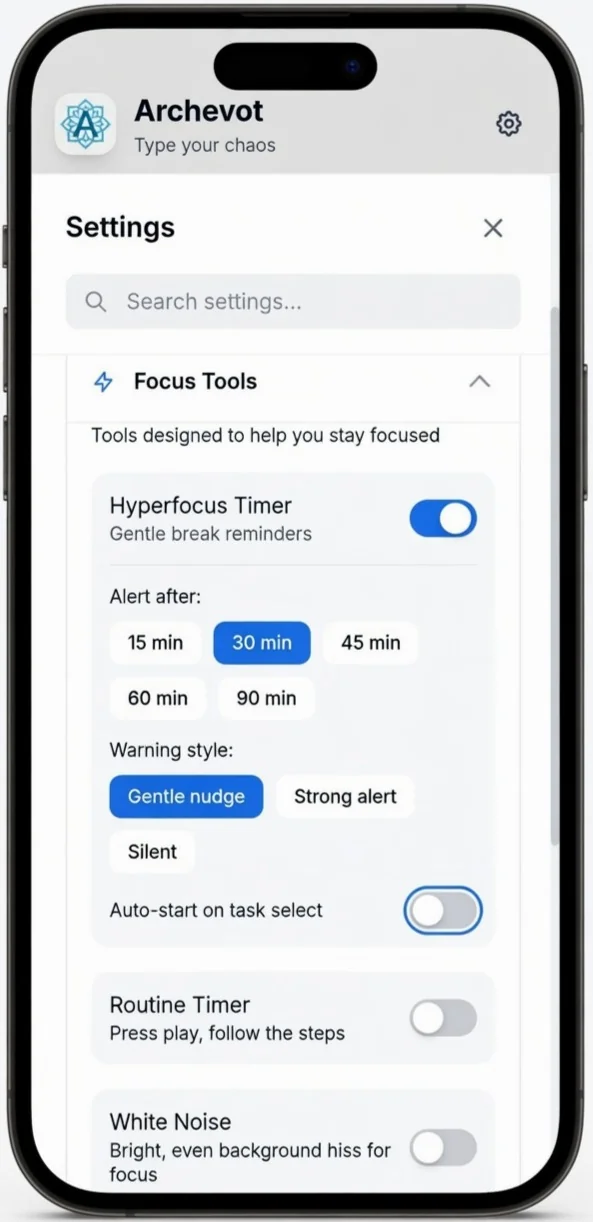
Once the timer is open, you can set everything up from one screen:
- Tap the time to choose how long the session should last (anywhere from 15 to 90 minutes).
- Tap the warning style to switch between a gentle nudge and a stronger alert at the end of the session.
- Toggle "Auto-start on task select" if you want the timer to begin automatically the moment you pick a task, useful when activation energy is the hardest part.
If you've ever looked up and realised three hours have passed, start with strong warnings. You can always dial it back.
Click the lightning icon to open the Focus Timer
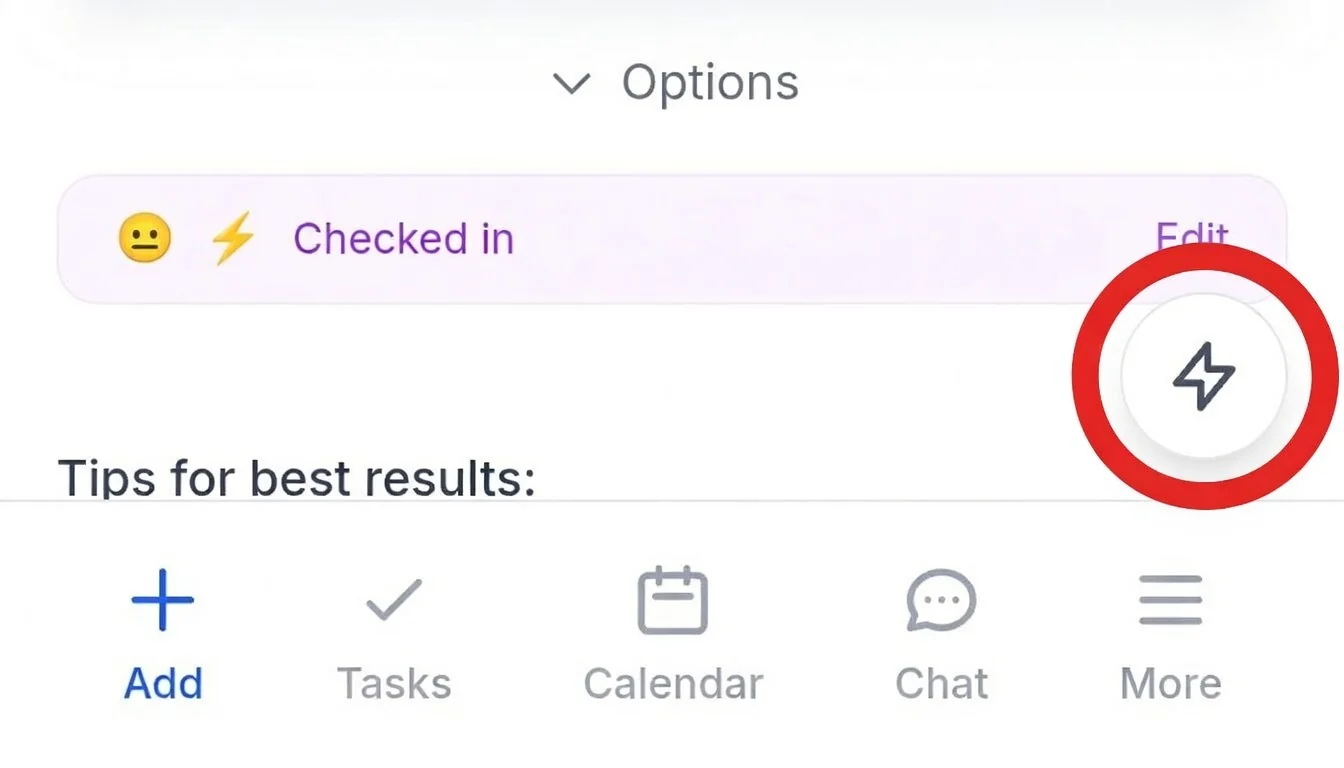
Tap the ⚡ lightning icon from either the ✅ Add Tasks page or the 📅 Calendar page in the bottom menu of the app to launch the Focus Timer for that task.
Start your focus session
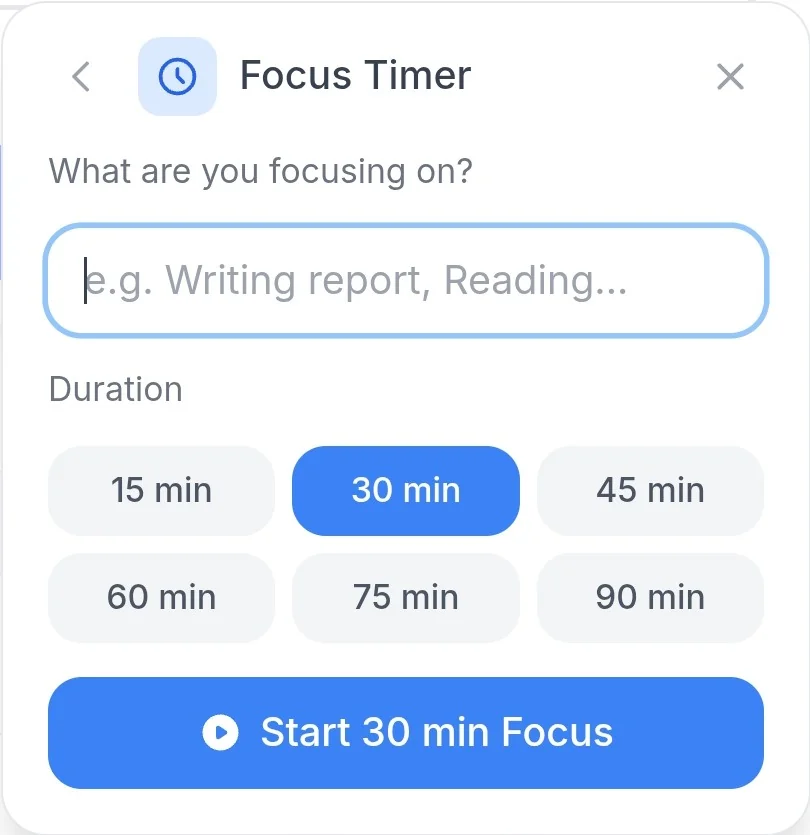
Type in the tasks you want to do, tap the time duration that suits you, then hit Start. You can end the timer at any time by tapping the pause or stop button, rest counts too.
Setting up the Routine Timer
Turn on the Routine Timer
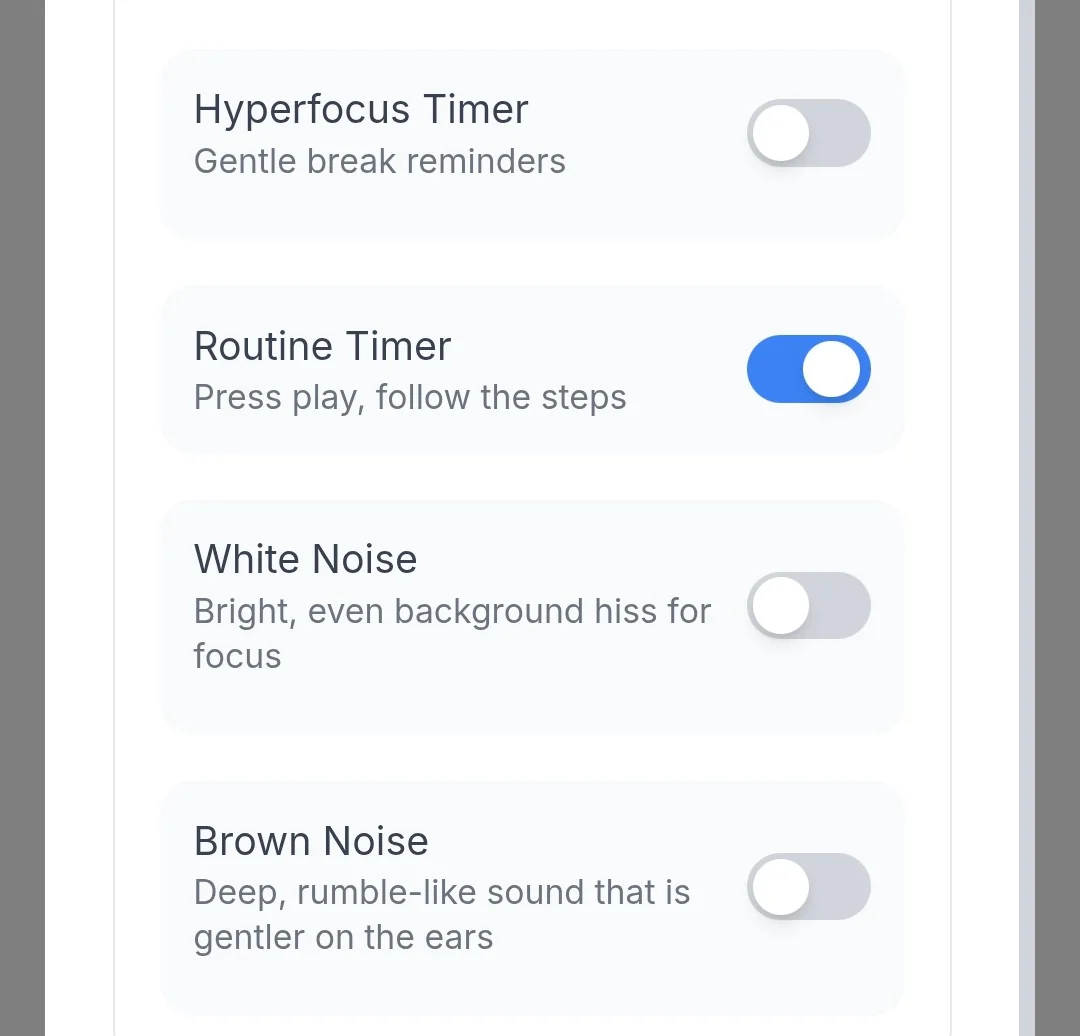
Click the toggle button on the Routine Timer to switch it on.
Pick a routine
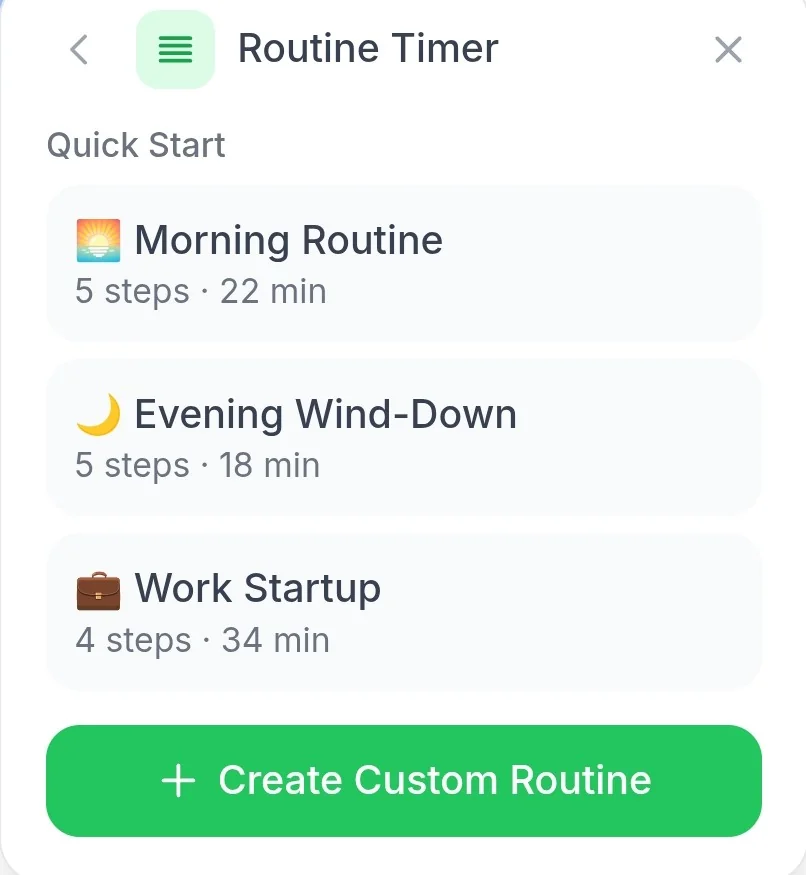
Click on the routine you'd like to use from the list. Alternatively, you can create your own by tapping the green Create Custom Routine button.
Start, change, or add tasks
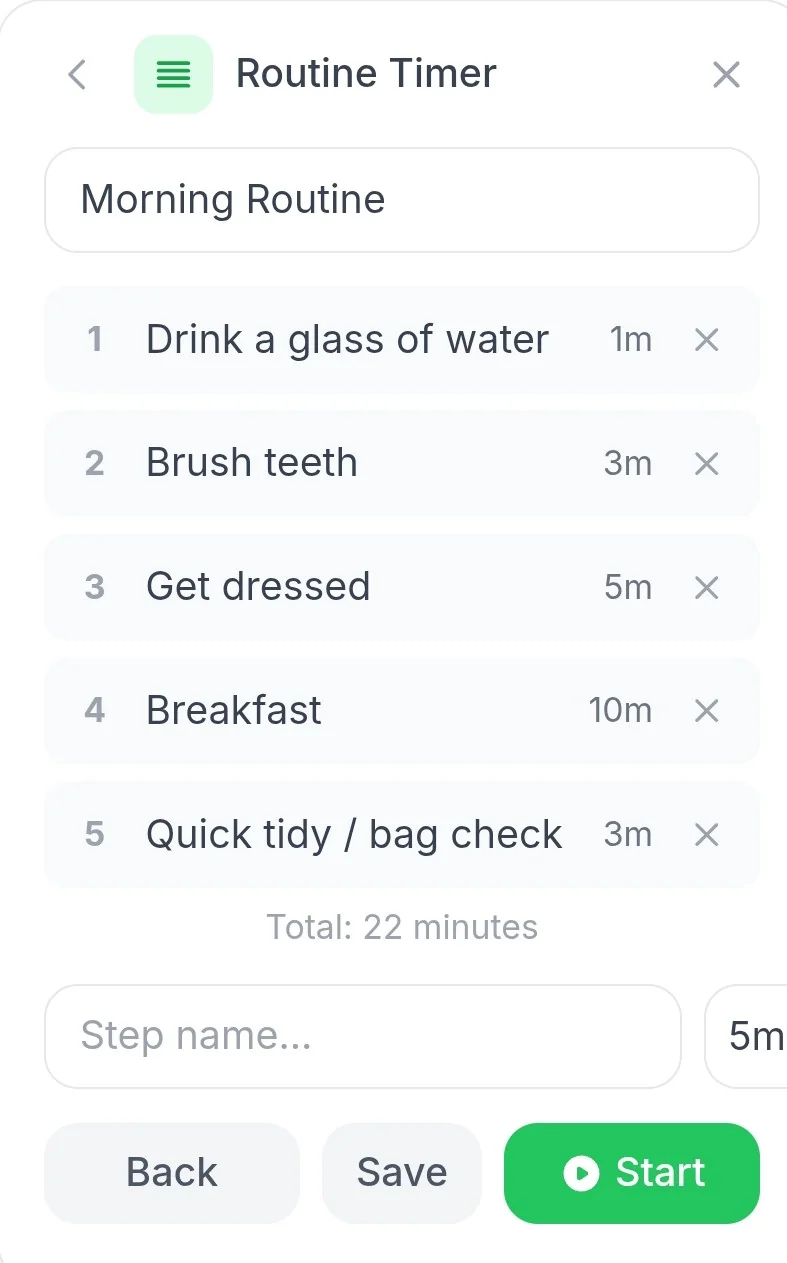
From here you can start the tasks, change any of the existing ones, or add new tasks by typing them into the box below and clicking the Add button.