Playing white or brown noise
Background soundscapes can make it easier to settle, focus, or wind down. Archevot has built-in white and brown noise you can pair with your timer or run on its own.
Find the white noise player
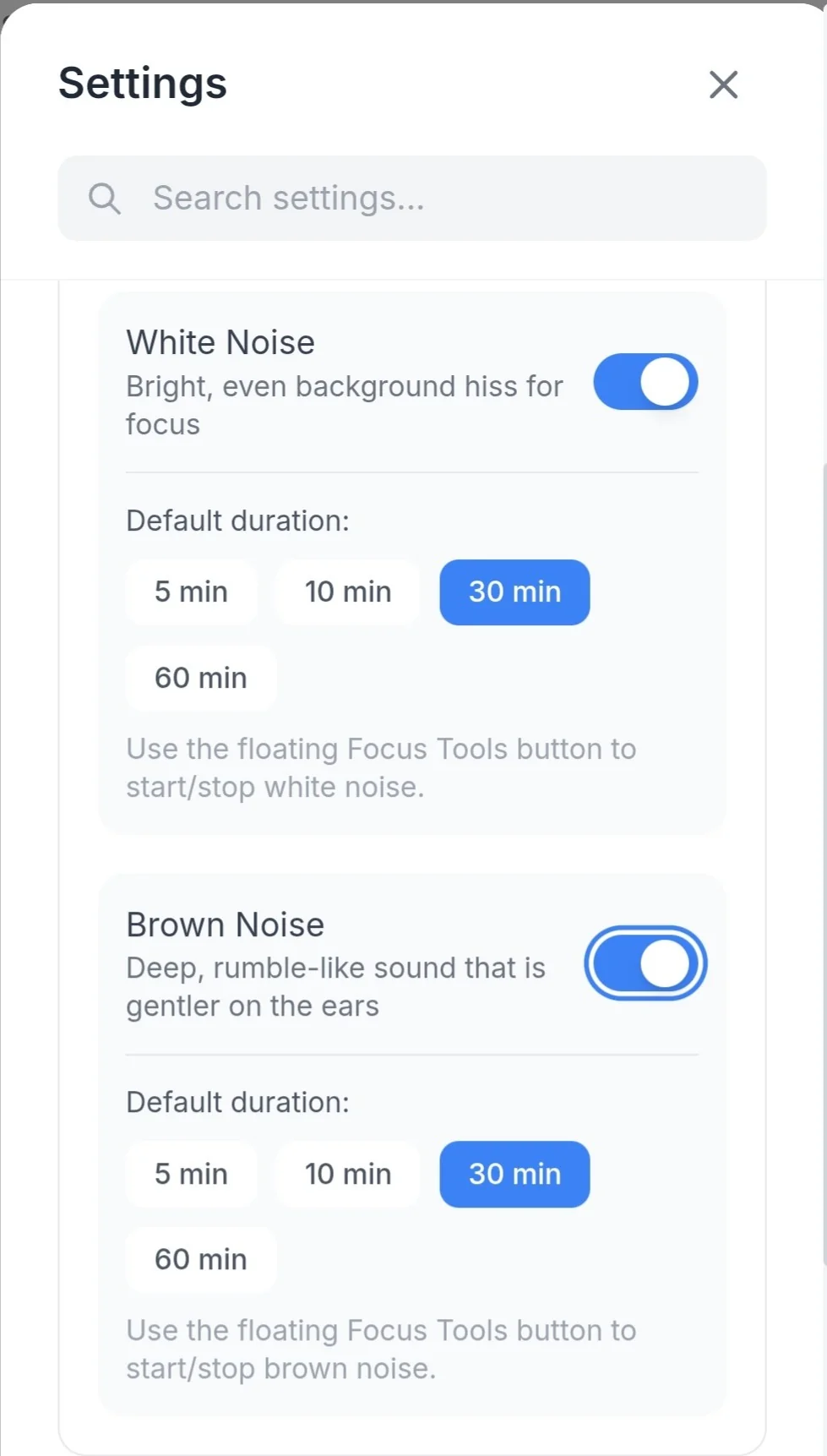
You'll find the white and brown noise settings in the Focus Tools tab inside the Settings section. You can toggle the white and brown noise on individually or run both together at the same time.
Pick a sound
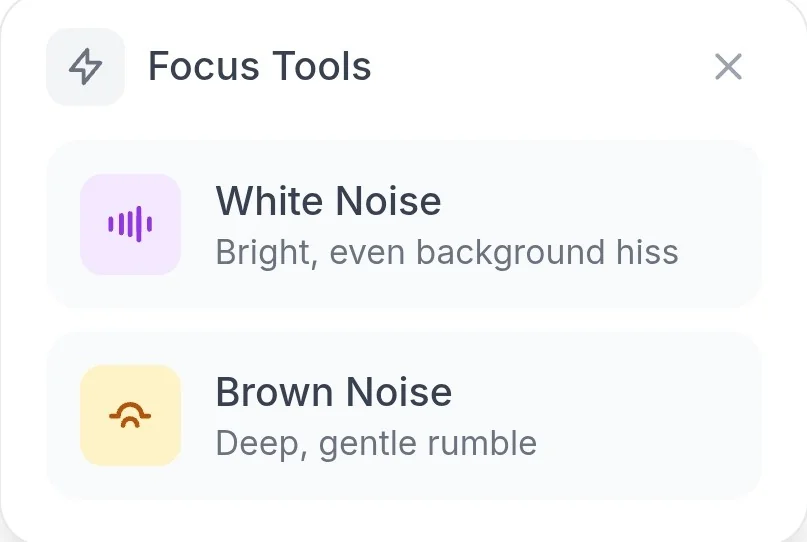
You can access the white and brown noise by clicking the ⚡ lightning icon in the bottom right of the app on the Home, Tasks, or Calendar page.
Using the white or brown noise
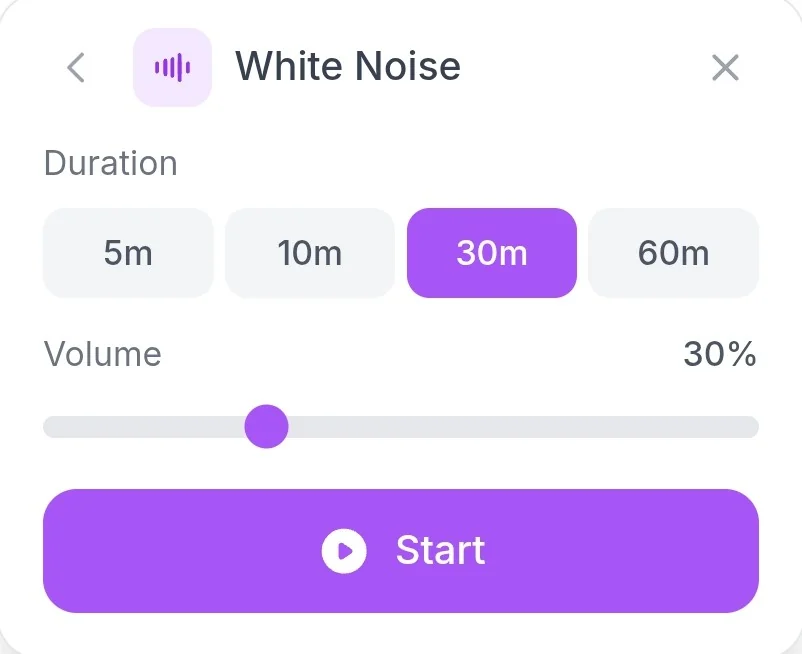
Click on the desired time, adjust the volume to your preference, then tap the Start button.
Pair it with the timer
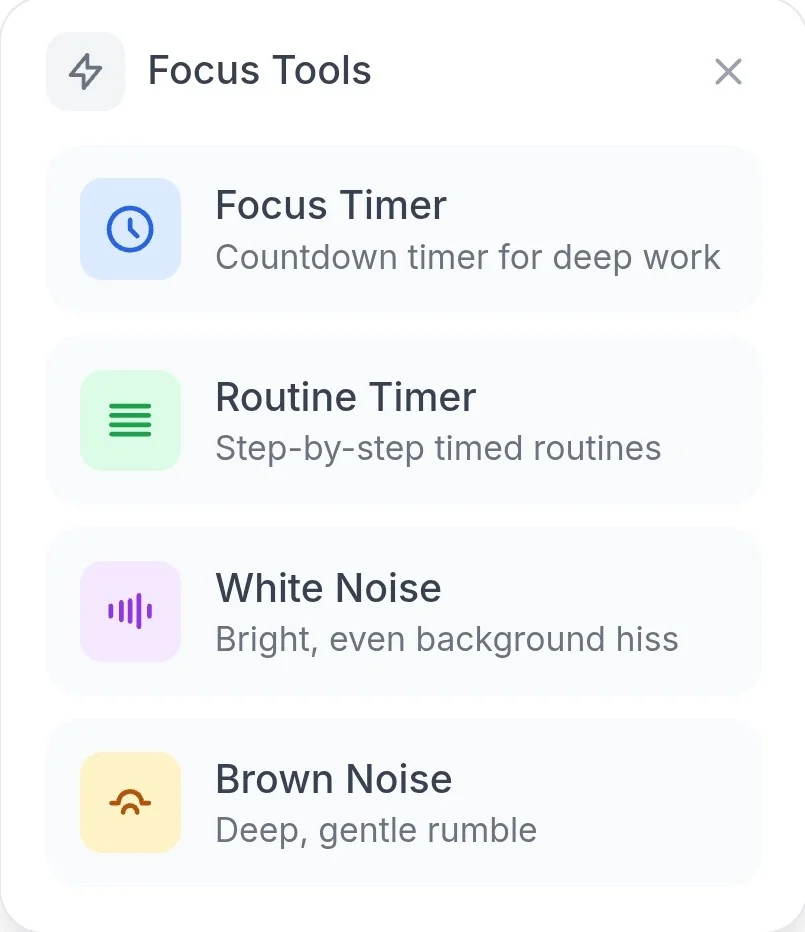
If you toggle all four buttons on in the Focus Tools section, every one of them will appear together when you tap the ⚡ lightning icon.
If headphones make you feel more "in the zone", a consistent sound cue each focus session can become a signal to your brain that it's time to work.