Your first task breakdown
Archevot turns a big messy dump of thoughts into a clear, actionable plan. This guide walks you through the very first time you use it, from typing your overwhelm to checking off your first task.
Open Archevot
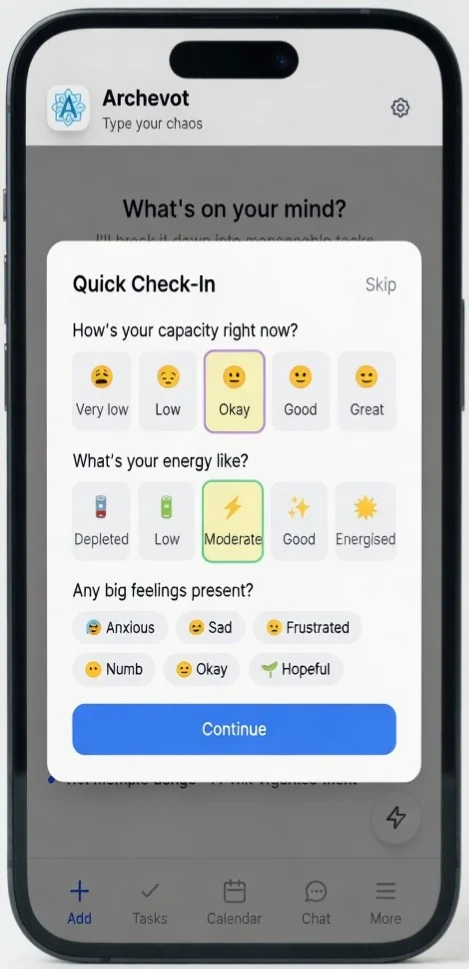
On this screen, it's a quick mental health or mood check-in feature in the Archevot app. All you have to do is tap the relevant emojis or icons that best describe:
- Your current capacity (from Very low 😩 to Great 😊)
- Your energy level (from Depleted 🔋 to Energised 🌟)
- Any big feelings you're experiencing (like Anxious, Sad, Frustrated, etc.)
Once you've selected the ones that match how you're feeling, just hit the blue Continue button to proceed. It's a fast, low-effort way to log your state!
Type what's on your mind
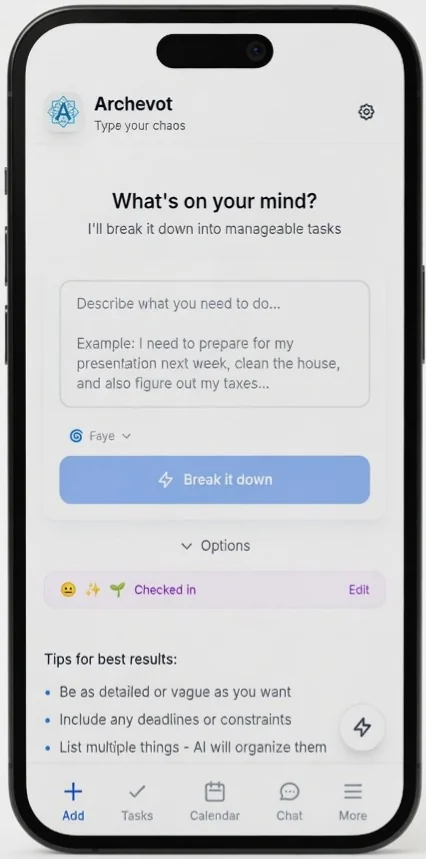
On this screen, simply type what you need help with into the large text box at the top (e.g. "I need to prepare for my presentation next week, clean the house, and figure out my taxes…").
Be as detailed or as vague as you like, you can also add deadlines or multiple tasks. Once you're done, tap the blue Break it down button, and the AI will organise everything into manageable tasks for you!
Don't worry about structure. "I need to finish my report, call the dentist, and reply to emails" works perfectly.
Choose your persona for this task
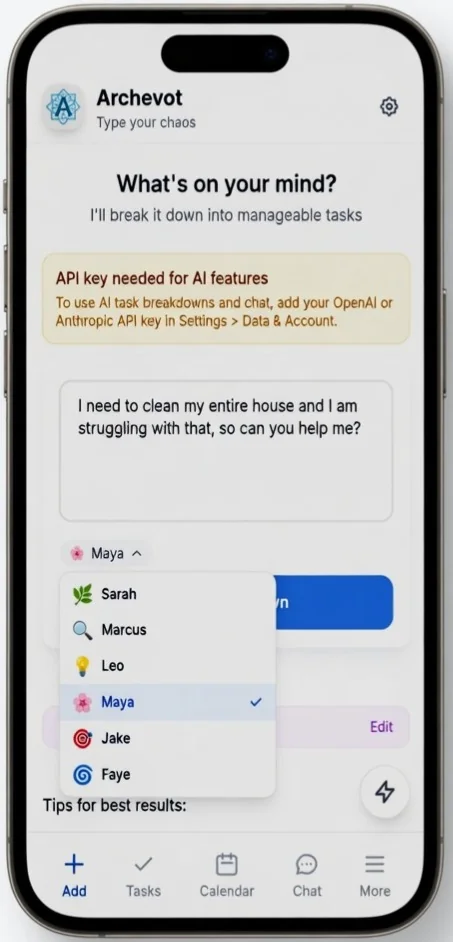
Now pick the persona that feels right for what you're working on. Each one has a different approach, some are calm and reflective, others are direct and motivating, so the right choice depends on what you need today.
Not sure who's who? Head over to the personas overview to see a short description of each AI guide and what they're best at, then come back and tap the one that fits. Once you've selected your persona, continue to the next step.
Set your overwhelm level
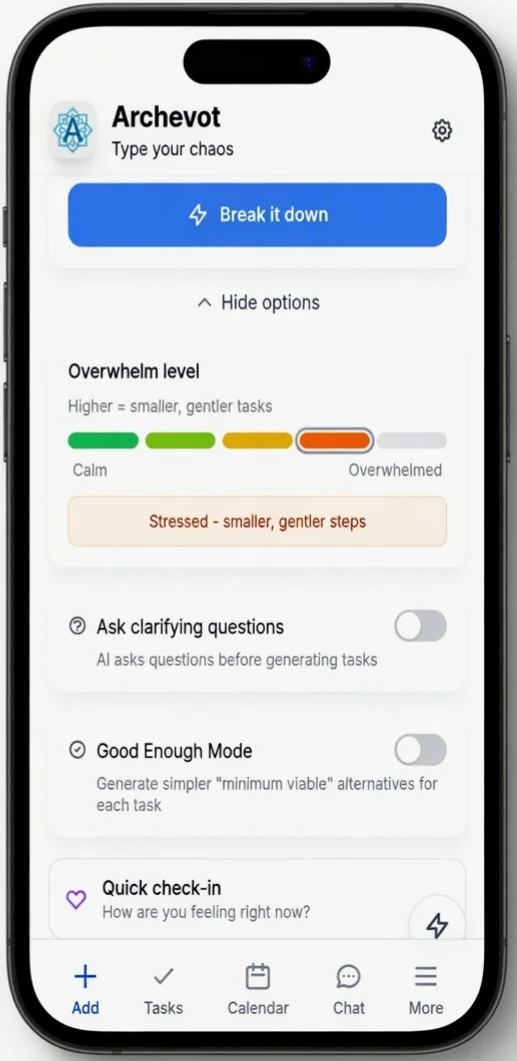
On this screen, set how overwhelmed you're feeling right now using the slider (from 1, calm and focused, to 5, completely overloaded). Archevot uses this to decide how many steps to give you and how small each one should be, low numbers get detailed plans, higher numbers get fewer, gentler steps.
You can also toggle two optional buttons before continuing:
- Ask clarifying questions, let the AI ask you a few quick questions first so the breakdown is more tailored to your situation.
- Good Enough Mode, turn this on to get simpler, minimum-viable versions of each task when perfectionism or low energy is getting in the way.
Once your level is set and the toggles are how you want them, tap Continue to move on.
Start checking things off
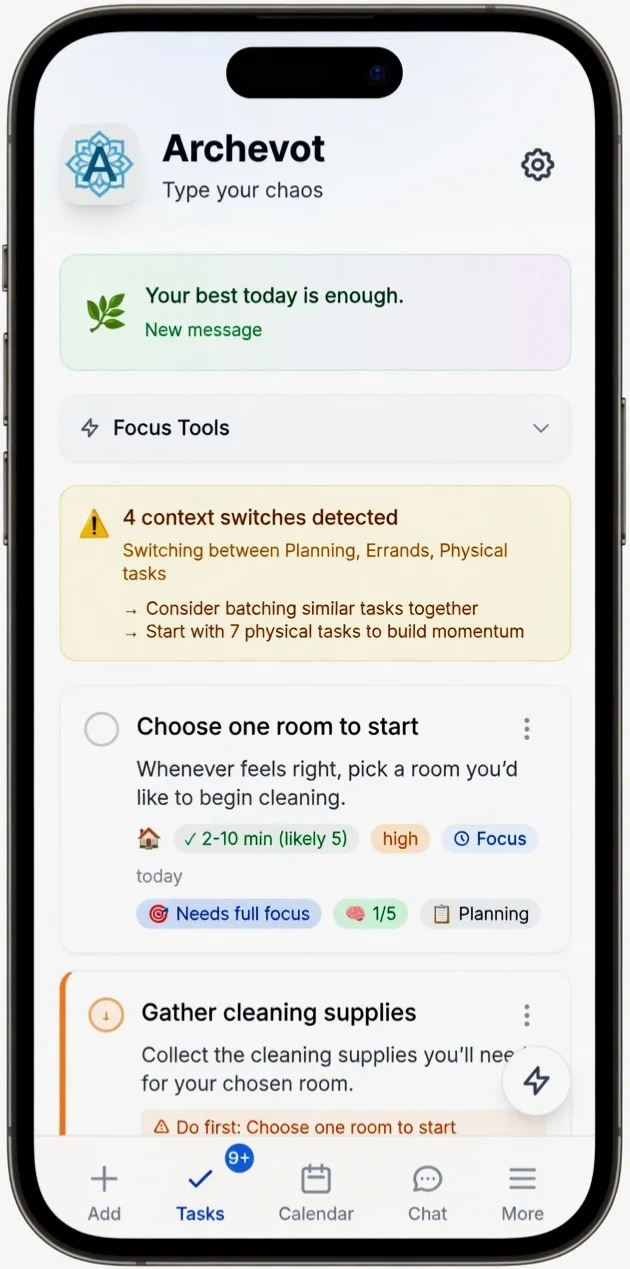
This is your finished action plan. Each step has a little empty circle on the left, when you've done that step, just tap the circle and it'll fill in and show a tick, then the task will cross itself out so you can see your progress at a glance.
Work through them in whatever order feels right for you, there's no pressure to go top to bottom. If a task still feels too big, you can tap it to break it down even further, or toggle Good Enough Mode to get a smaller version. Every tick is a win, even on the tiny ones.
Choose One Thing Mode
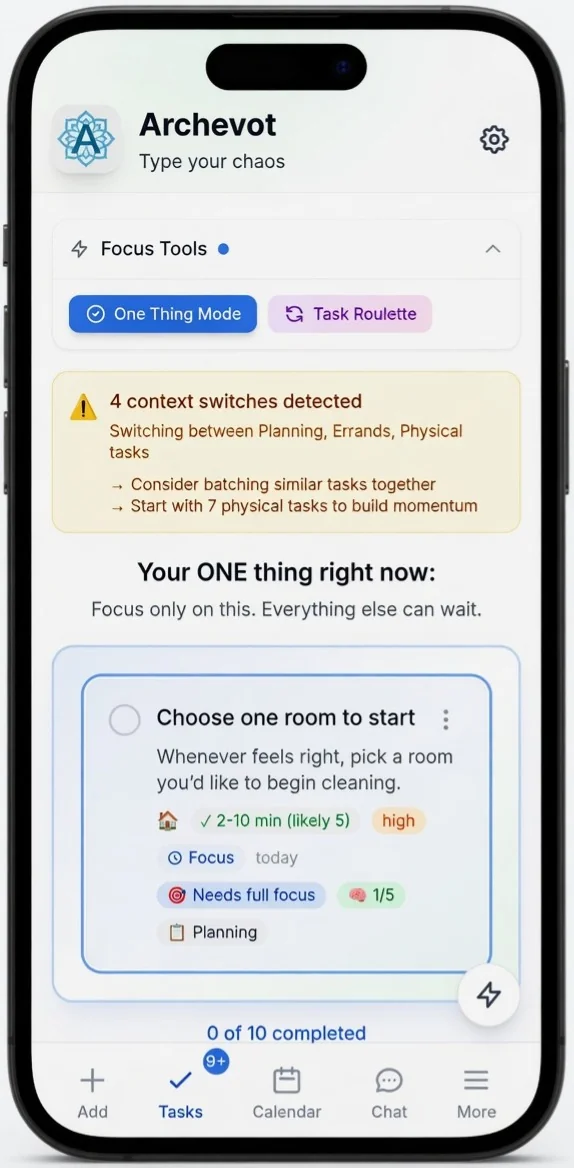
If your full list still feels like too much, tap the One Thing Mode button. It hides everything else and shows you just one task to focus on right now, so you can stop scanning the list, stop deciding, and simply start.
Use One Thing Mode any time you're feeling stuck or overwhelmed by choice. Finish the one task you're shown, then tap again for the next one, or go back to the full list whenever you're ready.
Task Roulette
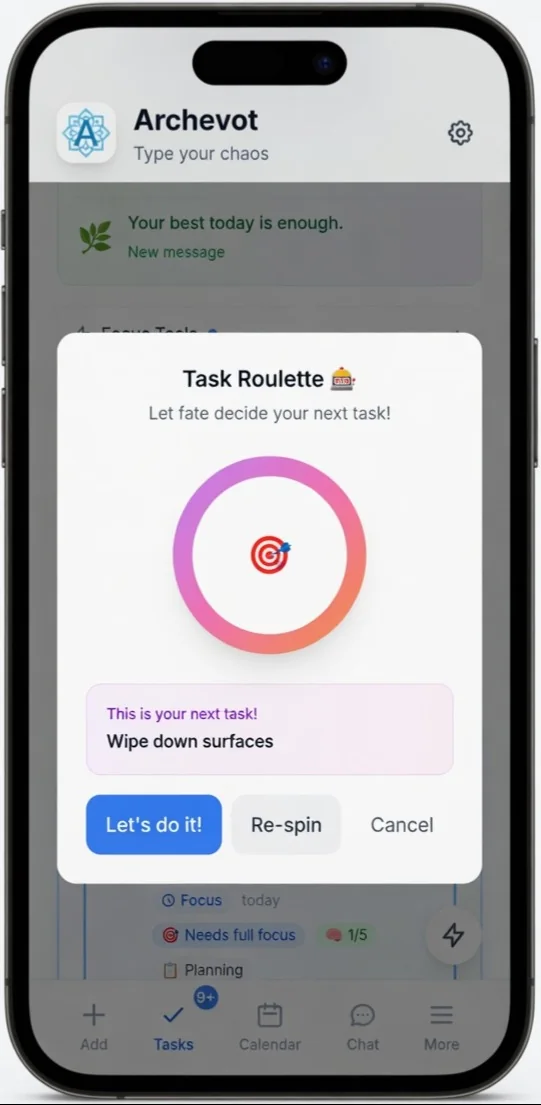
Task Roulette takes the "what should I do first?" decision out of your hands. Tap the button and Archevot randomly picks one task from your list for you, no weighing up, no ranking, no deciding.
It's especially helpful when you're stuck in decision paralysis, when every task feels equally important (or equally unappealing), or when your brain just won't commit. Letting chance choose can break the stall and get you moving. If the task it lands on really isn't the right fit, you can spin again, but often the easiest win is to just start the one that came up.
Dopamine menu
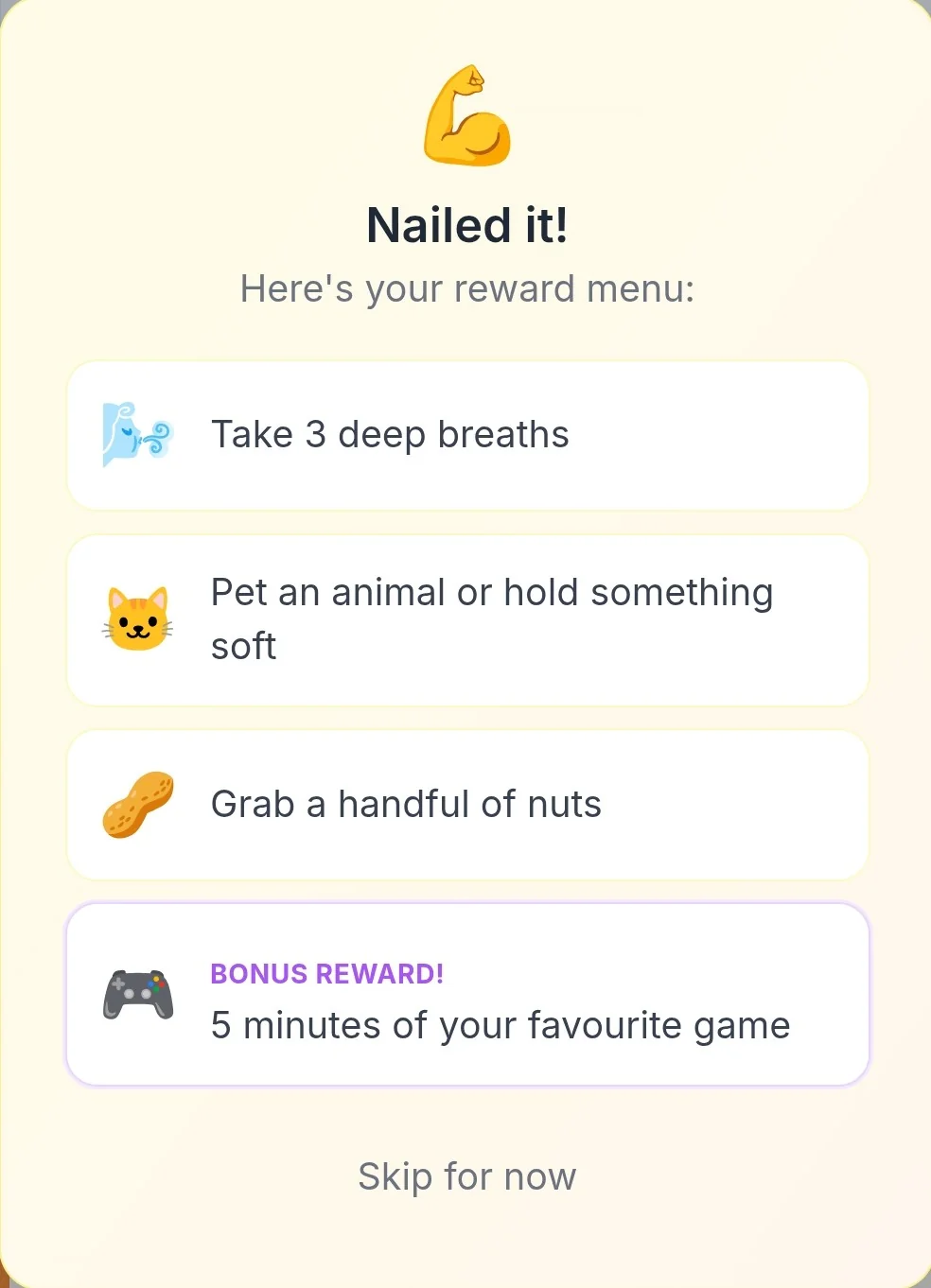
This is the Dopamine Menu. It pops up every time you've completed a task and offers a few quick reward ideas to celebrate the win. You can choose one to enjoy, or tap Skip for now if you'd rather move straight on to the next task.