Using the calendar
The calendar is where your task list meets your day. Here's how to use it from start to finish, in plain, simple steps.
Open the calendar
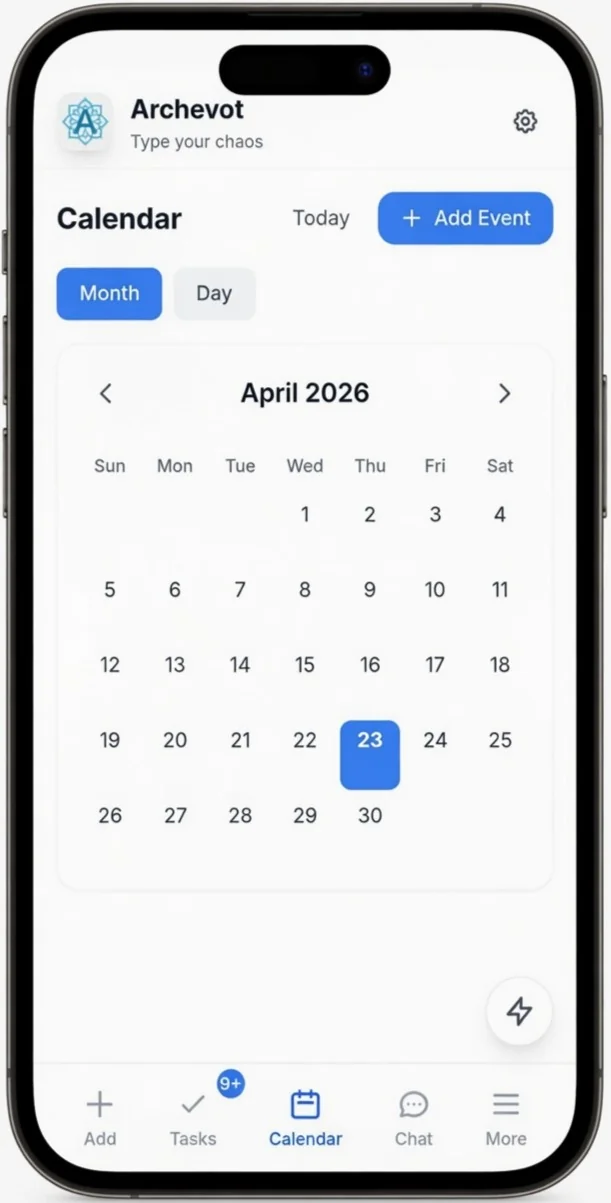
Tap the Calendar icon in the bottom navigation to open it. From here everything you need to plan your day is on a single screen:
- Today shortcut, tap "Today" next to the Calendar title to jump straight back to the current date from anywhere in the month.
- + Add Event button, the blue button in the top right lets you drop a new task or event onto the calendar in seconds.
- Month / Day toggle, switch between a full month overview and a detailed single-day view.
- Month navigation, use the left and right arrows around "April 2026" to scroll back or forward through the months.
- Monthly grid, every day of the month laid out Sun–Sat. Today's date is highlighted in a blue square so you can spot it instantly.
Switch between Month and Day view
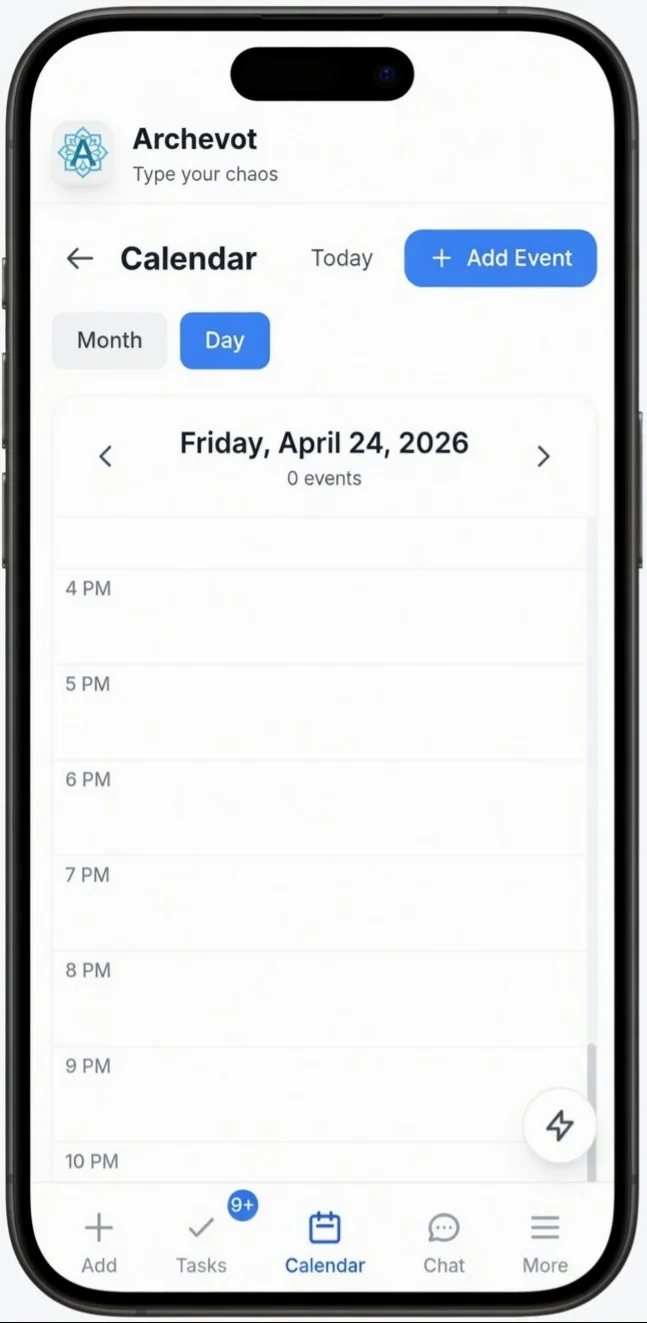
Use the Month and Day toggle at the top to change the view. Month view gives you the big picture; Day view drops you into a single day broken down hour by hour, great for planning exactly when things happen.
In Day view you can simply tap on any time slot to add an event there. No need to go through the Add Event button unless you prefer to, tapping the hour you want is the quickest way.
If you try to add an event at a time that already has something scheduled, Archevot will flag it so you don't accidentally double-book yourself.
Move to another month
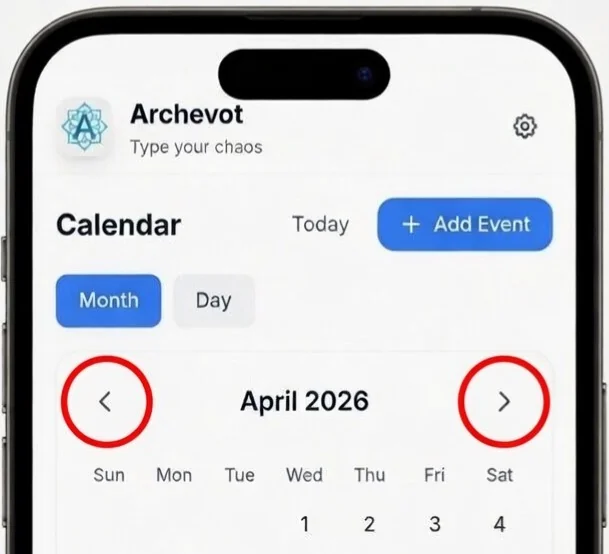
To move to another month, just tap the little < and > arrow buttons on either side of the month name. Left takes you back in time, right jumps you forward, handy for planning ahead or checking something from last month.
Add a new event
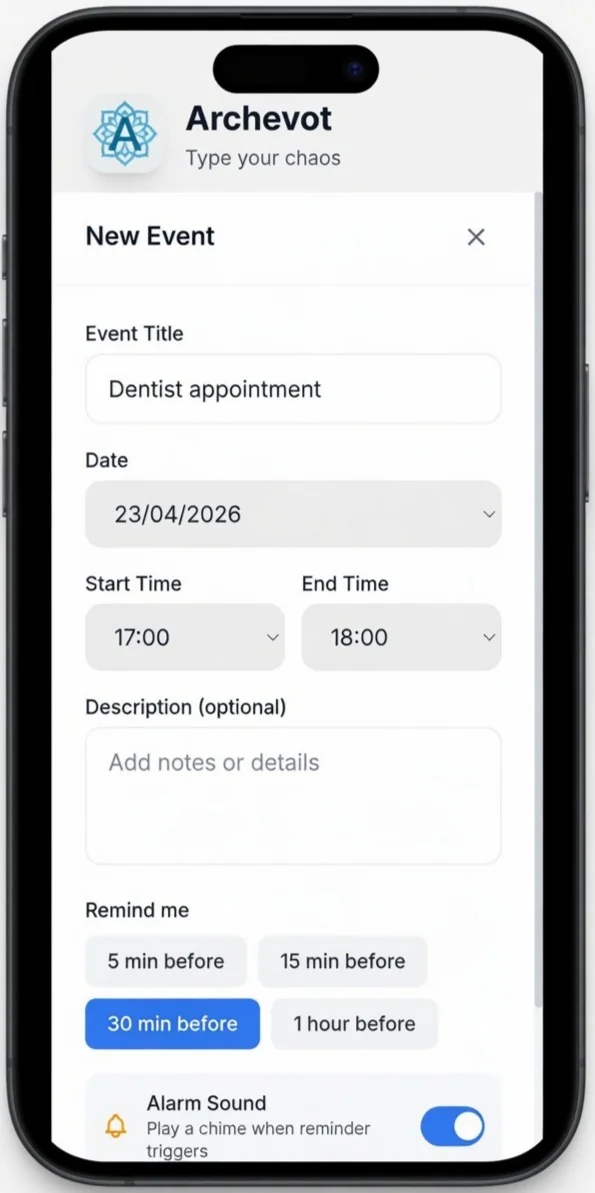
When you tap + Add Event (or a time slot in Day view), the New Event form slides up. Fill it out section by section:
- Event Title, give your event a clear name like "Dentist appointment" or "Call with Sam". This is what'll show up on the calendar.
- Date, tap the date field and pick the day you want. It defaults to the date you're currently viewing.
- Start Time and End Time, set when the event begins and finishes. The two dropdowns sit side by side so it's quick to adjust both.
- Description (optional), add any notes or details you want to remember, an address, a reference number, things to bring, questions to ask. Leave it blank if you don't need it.
- Remind me, tap one of the four buttons (5 min, 15 min, 30 min or 1 hour before) to pick how far ahead you want your reminder. The selected option turns blue.
- Alarm Sound, leave this toggle on to hear a chime when the reminder triggers. Switch it off if you want a silent reminder.
- Voice Reminder, turn this on and Archevot will read the event title aloud when the reminder fires, helpful when your eyes are busy or you're prone to missing notifications.
Once everything's filled in, hit Save at the bottom of the form and your event will drop onto the calendar at the right time.