Connecting your AI provider
Archevot works with OpenAI, Anthropic Claude, or its built-in Demo Mode. Use your own API key for personalised results, or stay on Demo Mode for pre-set examples. This guide walks you through all three.
To use OpenAI or Anthropic with Archevot, you'll need to create your own account directly with the provider and add credit on their billing page. AI usage is then charged on a pay-as-you-go basis by OpenAI or Anthropic, completely separate from your one-time Archevot purchase. Typical personal use is a few pounds a month, but the cost depends entirely on how much you use it. Archevot never charges for AI usage and never receives any share of these fees. If you'd rather not pay for an API key, free Demo Mode (5 generic breakdowns per day) is always available.
Open AI settings
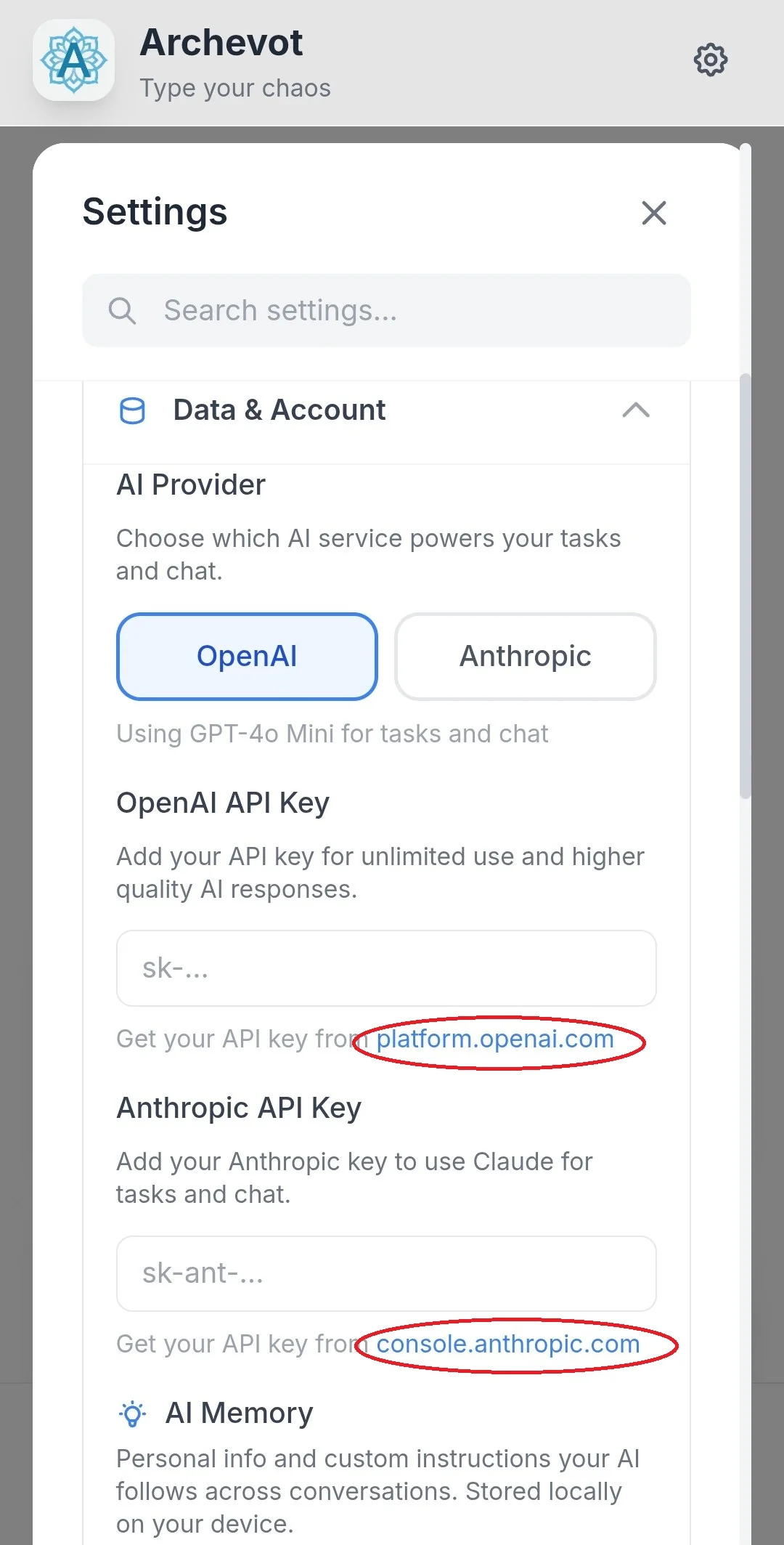
To get started, tap the OpenAI or Anthropic links, these will take you straight to their websites where you can register an account and purchase your API key.
Archevot supports three different ways to power the AI:
- OpenAI, connect with your own OpenAI API key to get personalised, tailored responses powered by GPT models. OpenAI also lets you use the read-aloud (text-to-speech) feature directly from the OpenAI platform, note that this is billed by OpenAI as part of your usage.
- Anthropic, connect with your own Anthropic API key to use Claude. You'll get nuanced, tailored responses, billed by Anthropic based on your usage.
- Demo Mode, try Archevot without an API key. Demo Mode is free, but the responses are pre-set and generic, they aren't personalised to what you actually type. Use it to explore the app, but switch to OpenAI or Anthropic for real, tailored responses.
Create your API key
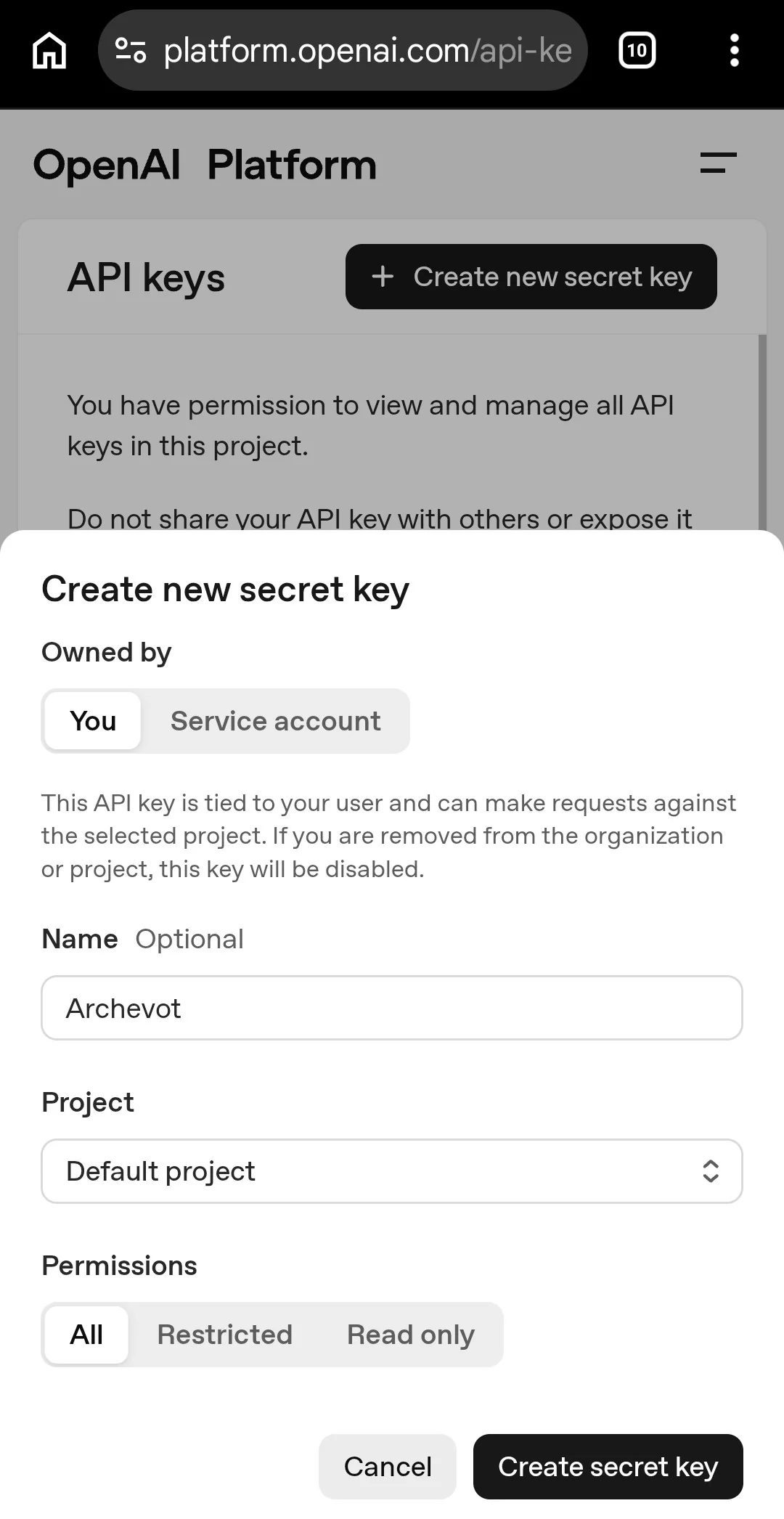
Once you're on the OpenAI platform and have purchased some credit, head to the API keys section and tap Create new secret key. Add a name for the key, it can be anything you like, then tap Create secret key.
The procedure is exactly the same for Anthropic on their console.
Once your key is created, copy it and paste it into the OpenAI API key (or Anthropic API key) section back in the Archevot app.
Paste and save your API key
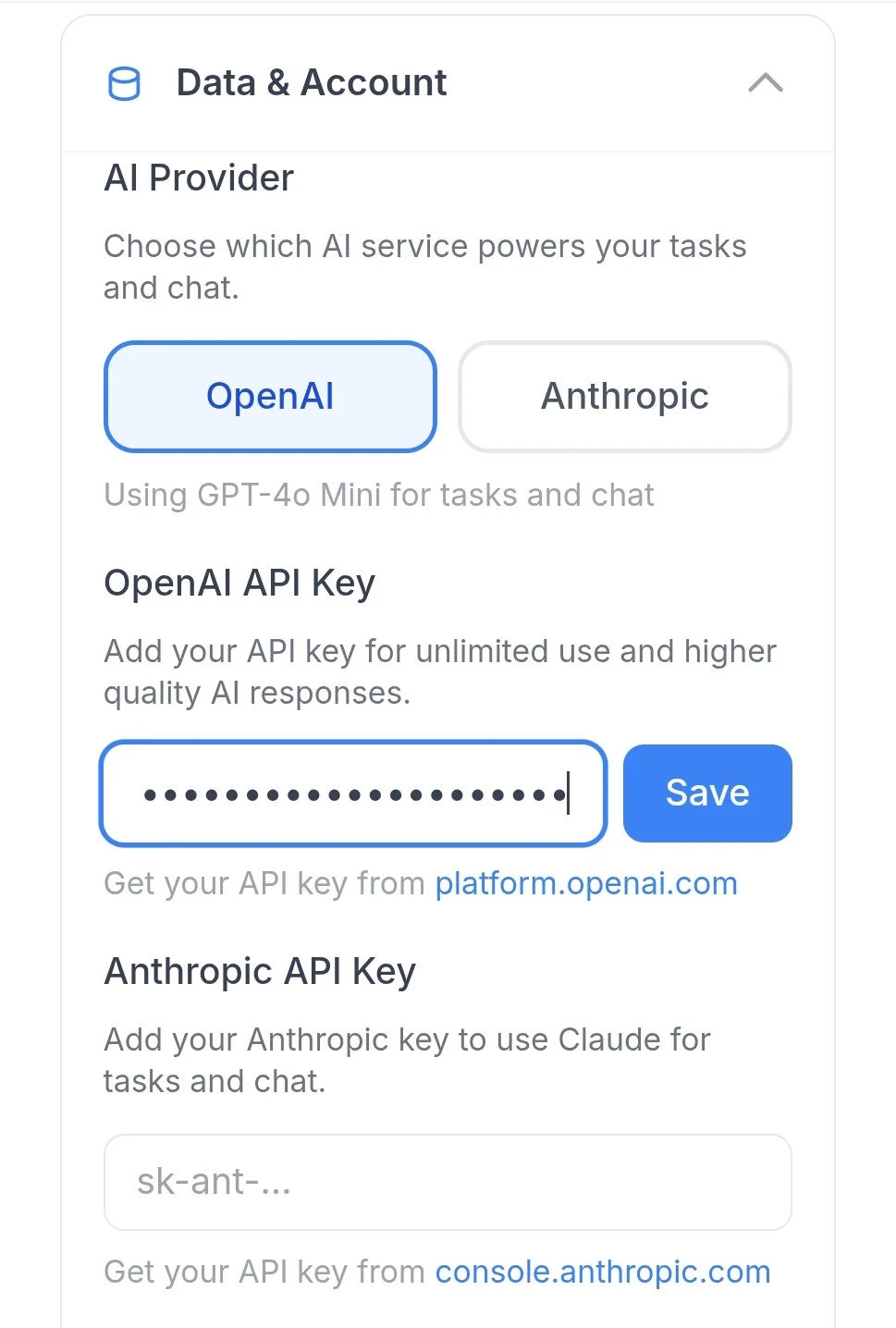
Paste the API key you just copied into the field, then tap the Save button. You should see a green confirmation message saying "API key saved and working".
You can add just one API key, or, if you'd like to switch between models, you can add two API keys, one from each AI provider. You can toggle between each AI provider as and when you please.
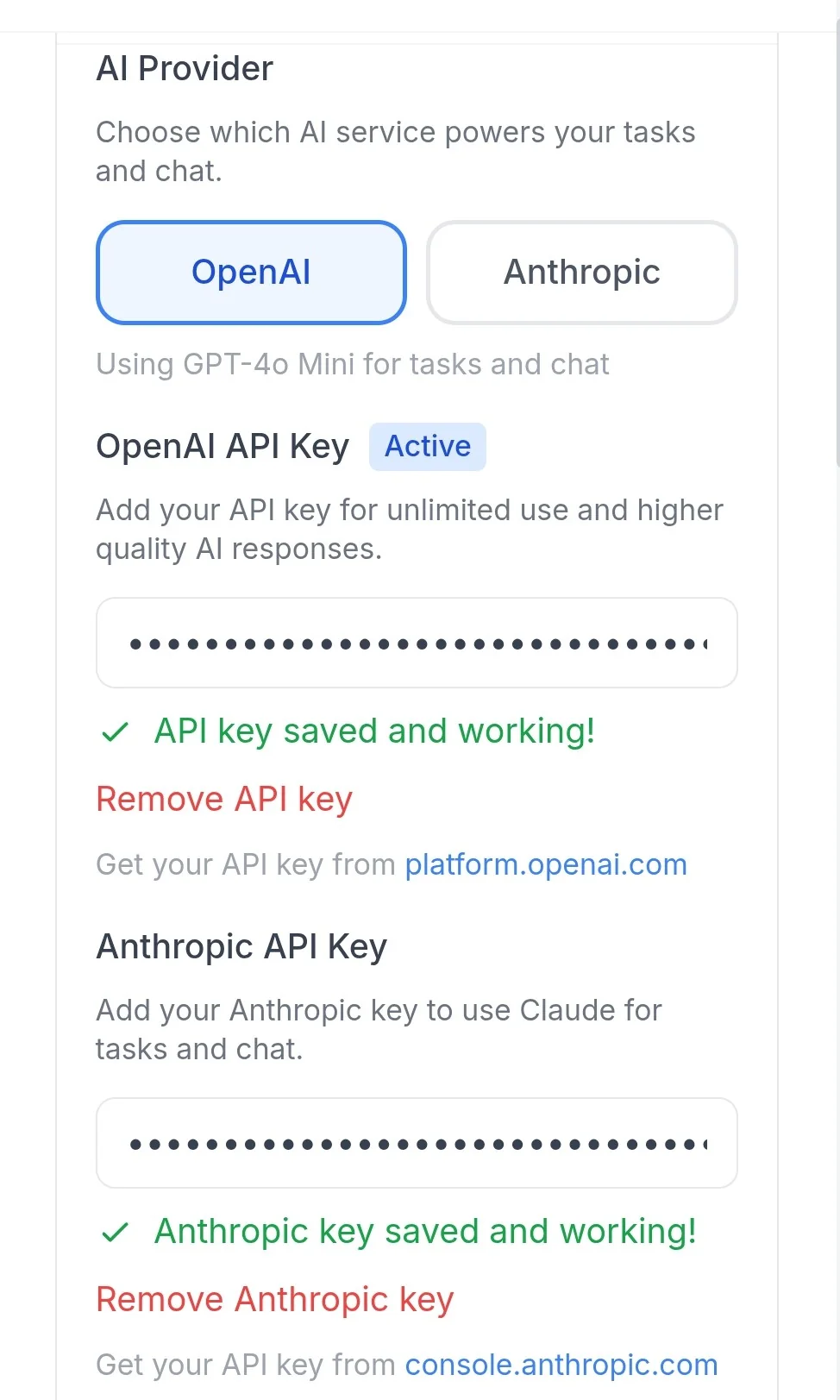
Both providers use strictly pay-as-you-go pricing. You only pay the provider, Archevot never charges for AI usage.